01
Clicking "Complaints"
The owner clicks the "Complaints" link in the sidebar to view the master list of all reported platform issues and feedback.
Follow the steps below to complete this action inside Marafiqy.
The owner clicks the "Complaints" link in the sidebar to view the master list of all reported platform issues and feedback.
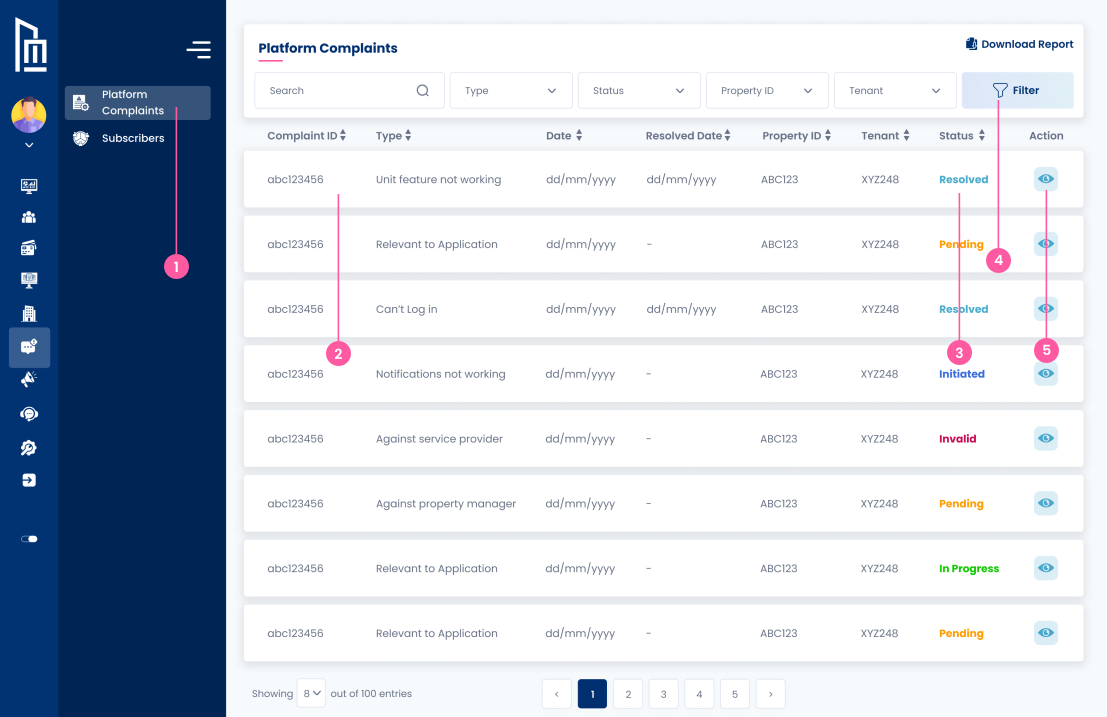
They see a list of complaints showing the unique Complaint ID, Type (e.g., "Unit feature not working," "Against service provider"), Date of submission, and the affected Property ID and Tenant name.
They can clearly see the Status of each complaint, ranging from "Initiated" and "Pending" to "In Progress," "Resolved," or "Invalid."
They can perform searches and apply Filters based on the Type of complaint, the current Status, the Property ID, or the Tenant who submitted it.
They can perform the action of clicking the Eye Icon to view the full details and communication log for a specific complaint, or "Download Report" for bulk analysis.
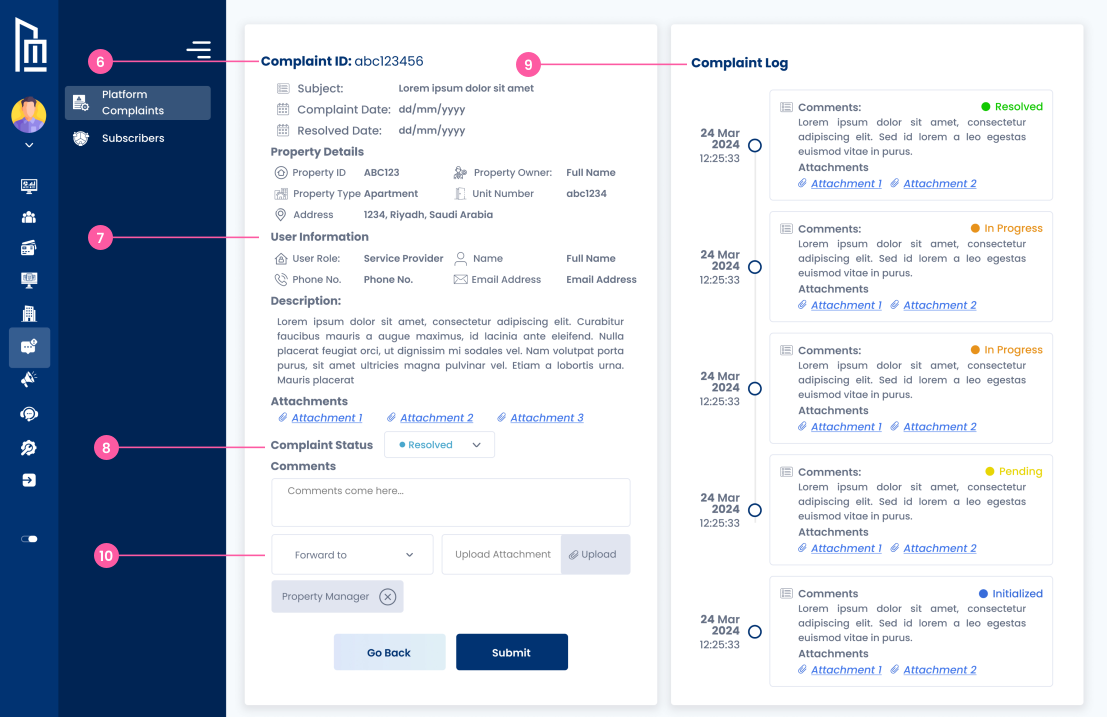
They see the unique Complaint ID, Subject, Complaint Date, the associated Property ID, Property Owner, and the Unit Number/Address.
They see who the complaint is Against (e.g., Service Provider or Property Manager), along with the relevant user’s Name, Phone No., and Email.
They can perform the action of updating the Complaint Status (e.g., from Pending to Resolved) and add comments in the text box for internal tracking.
They see the chronological Complaint Log on the right, which tracks all updates, comments, status changes (e.g., Initialized, Pending, In Progress, Resolved), and attached documents.
They can perform actions to “Forward to” another party (like a Property Manager), Upload new attachments, and click “Submit” to save the resolution and update the log.